Disclaimer: We do not claim ownership of this game and have embedded it purely for your enjoyment. All rights, content, and intellectual property belong to the original creator(s) or publisher(s). We truly appreciate the developers’ creativity and hard work—if you enjoy the game, please support them by visiting their official website or platform.
Marvel’s Spider-Man 2 is one of the most fun open-world games ever made. You swing across a bigger New York, switch between Peter Parker and Miles Morales, and take on some huge villains. Once you’ve felt that swinging, it’s natural to want it in your pocket too. That’s why so many people search for how to play a Spiderman 2 mobile game simulator on Android or iPhone.
So can you actually do it? Yes, but not the way most YouTube videos and download sites claim. This guide covers the three real methods that work, what you need for each, tips to make it feel great on a phone, and the fake downloads you should avoid.
Quick Facts Before You Start
- Platforms: Marvel’s Spider-Man 2 is on PS5 and PC (Steam and Epic Games Store). The PC version launched on January 30, 2025.
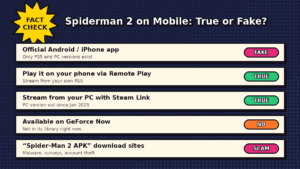
- Mobile app: There’s no official Spider-Man 2 app for Android or iPhone.
- Real ways to play on a phone: PS5 Remote Play, Steam Link from your PC, or a paid cloud PC service.
- Do you need to own the game? Yes, for all three methods.
Is Spiderman 2 Available on Mobile?
Not as a mobile game. Insomniac Games built Spider-Man 2 for the PS5, and Nixxes Software later brought it to PC. It’s a huge game with detailed graphics that phones can’t run on their own.
You can still play the full game on your phone by streaming it. The game runs on a PS5 or PC, and your phone shows the picture and sends your controls back. It’s the real Spider-Man 2, with the same story, same swinging and same graphics, just on a smaller screen.
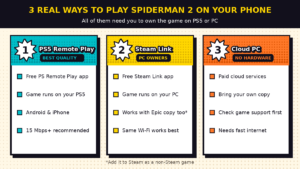
Way 1: PS5 Remote Play (Best Quality)
If you own Spider-Man 2 on PS5, this is the easiest and most reliable method.
- Enable Remote Play. On your PS5, go to Settings > System > Remote Play and turn on Enable Remote Play.
- Allow your phone to wake the PS5. Go to Settings > System > Power Saving > Features Available in Rest Mode. Turn on Stay Connected to the Internet and Enable Turning On PS5 from Network.
- Install the app. Download PS Remote Play from the Google Play Store or Apple App Store. It’s free.
- Sign in. Use the same PlayStation account that’s on your PS5.
- Connect a controller. Pair your DualSense to your phone through Bluetooth.
- Start swinging. Select your PS5 in the app, wait for it to connect, and launch Marvel’s Spider-Man 2.
Speed tip: Sony recommends at least 15 Mbps for the best Remote Play experience. Connect your PS5 to the router with a LAN cable for the most stable stream.
Way 2: Steam Link From Your PC
If you bought Spider-Man 2 on PC, you can stream it to your phone for free.
- Install the Steam Link app on your Android phone or iPhone.
- Turn on your PC and open Steam.
- Open Steam Link on your phone and pair it with your PC using the code on the screen.
- Connect a controller and launch Spider-Man 2.
Bought it on the Epic Games Store? Open Steam on your PC, choose Games > Add a Non-Steam Game to My Library, and select Spider-Man 2. It will then appear in Steam Link.
Remember: Your PC does all the work here, so it needs to run Spider-Man 2 well. Sony’s minimum PC requirements start at an NVIDIA GTX 1650 or AMD RX 5500 XT graphics card for 720p at 30 FPS.
Way 3: A Cloud PC Service (No Console or Gaming PC)
Some paid cloud gaming services let you play PC games you own on their powerful computers, then stream them to your phone. Some cloud services list Spider-Man 2 as a “bring your own game” title, which means you buy the game on Steam or Epic, link your account, and play from the cloud.
Before paying for a cloud service:
- Check that it supports Spider-Man 2. Game lists change, and Spider-Man 2 isn’t on GeForce Now right now.
- Check the price and time limits. Many services limit how many hours you can play.
- Test your internet. Cloud gaming needs a fast, stable connection.
- Use a well-known service. Avoid unknown sites asking for payment to “unlock” Spider-Man 2 on mobile.
Tips to Make Spiderman 2 Feel Great on a Phone
Use a real controller. Spider-Man 2 relies on quick swinging, dodging and combos. On-screen touch buttons make that very hard. A DualSense with a phone clip, or a phone grip controller, makes a huge difference.
Explore the accessibility settings. Spider-Man 2 has a large set of accessibility options. They include adjusting game speed and turning on assists that make chases and button prompts easier. These help a lot on a small screen or when your stream has a little delay.
Pick a bigger screen if you can. A phone with a 6.5-inch screen or larger, or a tablet, makes it easier to see enemies and read the map.
Lower the stream resolution if it’s laggy. 720p looks great on a phone and needs less internet than 1080p.
Use 5 GHz Wi-Fi. Switch your phone to the 5 GHz network for smoother streaming.
Keep your phone charged and cool. Streaming drains the battery fast. Take breaks during long sessions.
No PS5 or PC? Try These Instead
If you don’t own Spider-Man 2 yet, you can still enjoy some web-slinging style action on your phone:
- Official Marvel games like Marvel Contest of Champions include Spider-Man and his variants as playable fighters.
- Spider-hero simulator games on the Play Store and App Store offer open-city swinging and fights. They’re unofficial and free with ads, so check the developer and reviews before installing.
Warning: “Spider-Man 2 APK” Downloads Are Fake
Search for Spider-Man 2 on mobile and you’ll see pages promising “Spider-Man 2 APK + OBB,” “Spider-Man 2 Android beta,” or “Spider-Man 2 mobile download.” These are not real. Sony and Insomniac have never released Spider-Man 2 for Android or iPhone, and a game this big can’t be squeezed into a small APK file.
These downloads often lead to malware, fake surveys, stolen accounts, or a completely different low-quality game. Stick to the official app stores and the real streaming methods above.
Frequently Asked Questions
Can I play Spiderman 2 on Android without a PS5?
Yes, if you own it on PC and stream it with Steam Link, or if you use a cloud PC service with your own copy. Without the game, there’s no legal way to play it.
Is there an official Spiderman 2 mobile game?
No. Marvel’s Spider-Man 2 is only on PS5 and PC.
Do I need a PlayStation account to play the PC version?
No. Linking a PlayStation account is optional for the PC version.
Is Spiderman 2 on GeForce Now?
Not at the moment. Check the GeForce Now library for future updates.
Can I play Spiderman 2 on my phone with touch controls?
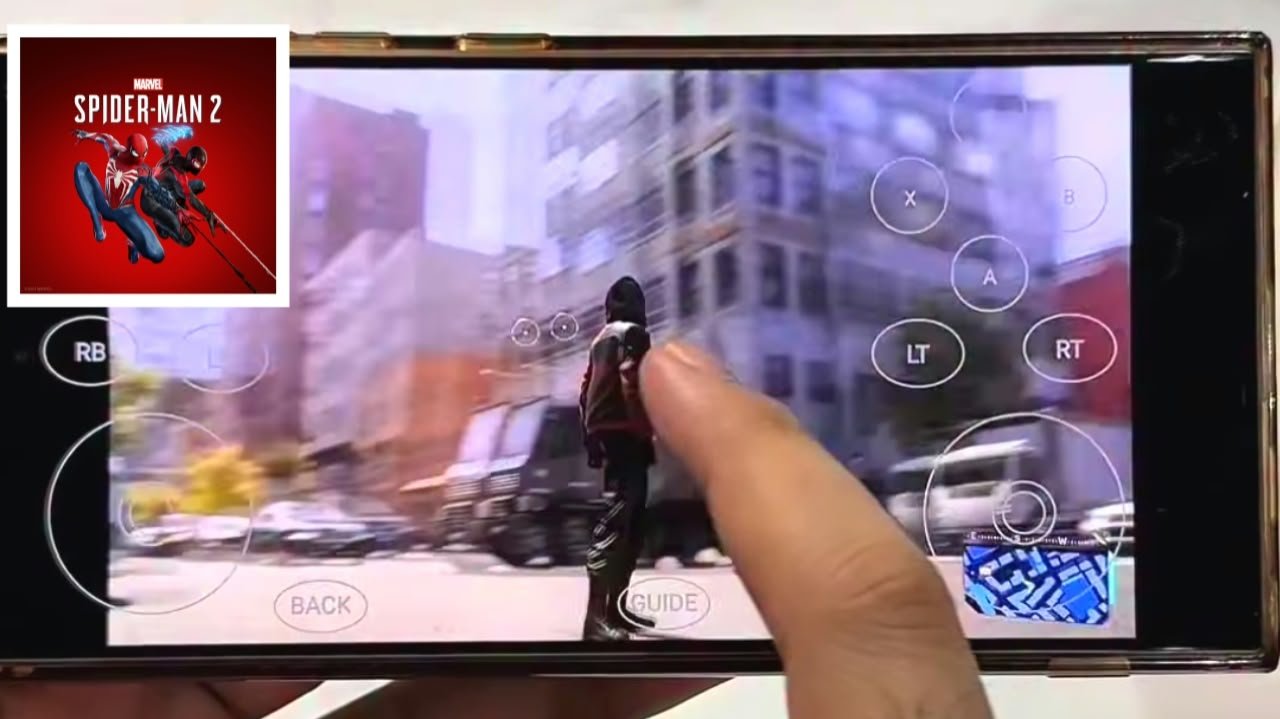
PS Remote Play has touch controls, but they’re hard to use for a fast action game. A controller is strongly recommended.
Does Spiderman 2 work on iPhone?
Yes, through PS Remote Play, Steam Link, or a cloud service, as long as you own the game.
Conclusion
You can’t download Spider-Man 2 as a phone app, but you can still play a Spiderman 2 mobile game simulator experience with the real game. If you own it on PS5, use PS Remote Play. If you own it on PC, use Steam Link. With neither, a trusted cloud PC service can work with your own copy. Grab a controller, tweak the accessibility settings, and skip every fake APK. Then you can swing through New York from anywhere.