Disclaimer: We do not claim ownership of this game and have embedded it purely for your enjoyment. All rights, content, and intellectual property belong to the original creator(s) or publisher(s). We truly appreciate the developers’ creativity and hard work—if you enjoy the game, please support them by visiting their official website or platform.
“Does this work on my phone?” That’s the first question most people ask when they want to play a GTA V mobile game simulator. Some guides only talk about Android, others only about iPhone, and many skip the small details that actually matter, like where to find the right app, how to pair a controller, or which phone settings help.
This guide covers both. I’ll explain what’s the same on every phone, then go through Android and iPhone separately so you can follow the exact steps for the phone in your hand.
What’s the Same on Every Phone
Before we split by phone type, here are the basics that apply to everyone:
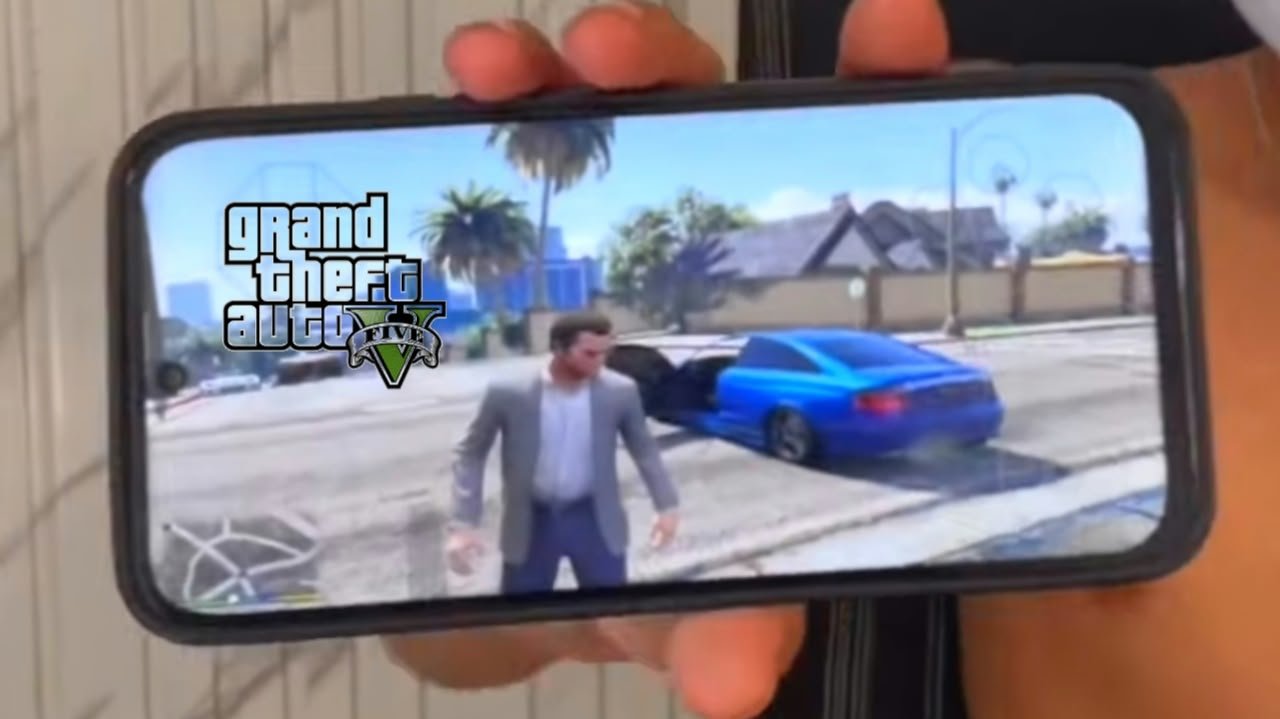
- There’s no official GTA V app for Android or iPhone. Rockstar has never released GTA V on mobile.
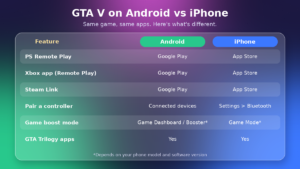
- To play the real GTA V on your phone, you stream it from a console or PC you own:
- PS4 or PS5 → PS Remote Play app
- Xbox One or Xbox Series X|S → Xbox app (Remote Play)
- PC → Steam Link app
- Cloud gaming isn’t an option right now. GTA V isn’t on GeForce Now, and it left Xbox Game Pass in April 2026.
- Official GTA games you can install: Rockstar’s GTA III, Vice City and San Andreas (Definitive Editions) are available on both Android and iPhone.
- You’ll want good internet. Sony recommends at least 15 Mbps for the best Remote Play experience.
How to Play GTA V on Android
Step 1: Install the right app
Open the Google Play Store and install the app that matches where you own GTA V:
- PS Remote Play for PlayStation
- Xbox for Xbox
- Steam Link for PC
Only install apps from their official developers: Sony Interactive Entertainment, Microsoft, or Valve. Copycat apps with similar names exist.
Step 2: Prepare your console or PC
- PS5: Turn on Settings > System > Remote Play > Enable Remote Play.
- PS4: Turn on Settings > Remote Play Connection Settings > Enable Remote Play.
- Xbox: Turn on Settings > Devices & connections > Remote features > Enable remote features.
- PC: Open Steam and keep the PC turned on.
Step 3: Pair a controller
Go to Settings > Connected devices > Pair new device (the exact menu name can vary slightly by brand). Put your controller in pairing mode and tap it in the list.
Step 4: Turn on gaming features (if your phone has them)
Many Android phones have a gaming mode, such as Game Dashboard on Google Pixel or Game Booster on Samsung. These can block notifications and give games more priority. If the streaming app isn’t detected as a game, you can usually add it manually.
Step 5: Connect and play
Open the app, sign in with the same account as your console or PC, connect, and launch GTA V.
Android tip: Some Android phones aggressively close background apps to save battery. If Remote Play keeps disconnecting, open Settings > Apps > [your streaming app] > Battery and set it to Unrestricted.
How to Play GTA V on iPhone
Step 1: Install the right app
Open the App Store and install PS Remote Play, Xbox or Steam Link, depending on where you own GTA V. Check that the developer name is Sony, Microsoft or Valve.
Step 2: Prepare your console or PC
The console and PC settings are the same as in the Android section above.
Step 3: Pair a controller
Put your controller in pairing mode, then go to Settings > Bluetooth on your iPhone and tap the controller under Other Devices. iPhones support the PlayStation DualSense and Xbox Wireless Controllers.
Step 4: Use Game Mode and Focus
On newer iOS versions, Game Mode can switch on automatically when you play a game. It reduces background activity and lowers controller delay. It may not turn on for every streaming app, so it’s also worth turning on a Focus mode, such as Do Not Disturb, to block notifications.
Step 5: Connect and play
Open the app, sign in, connect to your console or PC, and start GTA V.
iPhone tip: If the app can’t find your console, check that it has permission to use the Local Network under Settings > Privacy & Security > Local Network. Without it, the app can’t find your console at home.
Pairing a Controller: The Biggest Upgrade
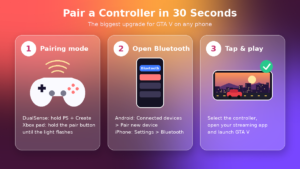
GTA V uses a lot of buttons: driving, shooting, the weapon wheel, the in-game phone, and switching characters. Touch controls work, but a controller makes it feel like a real console game.
Put your controller in pairing mode:
- PlayStation DualSense: Hold the PS button and the Create button together until the light bar flashes.
- Xbox Wireless Controller: Hold the small pair button on top until the Xbox button flashes quickly.
Then pair it from your phone’s Bluetooth settings, as shown in the steps above. To mount your phone on the controller, use a phone clip, or choose a phone grip controller that holds the phone in the middle.
Best Settings on Any Phone
- Stream resolution: Start at 720p. It looks sharp on a phone and is more stable than 1080p.
- Wi-Fi: Connect your phone to the 5 GHz network, not 2.4 GHz.
- Console or PC: Connect it to your router with a LAN cable if possible.
- In GTA V: Turn on Assisted Aim under Settings > Controls > Targeting Mode, and turn on subtitles under Settings > Display.
- Battery: Start with a full charge, or keep your phone plugged in for long sessions.
Playing Without a Console or PC
If you don’t own GTA V on another device, you can still enjoy GTA on your phone:
- GTA: San Andreas – The Definitive Edition is the closest to GTA V, with a huge map, three cities and lots of activities. It’s available on both Android and iPhone.
- GTA: Vice City and GTA III are also available as separate apps.
- GTA-style simulator games are free with ads on both app stores. Check the developer, download count and recent reviews before installing.
Avoid Fake GTA V Downloads on Both Phones
Fake “GTA 5 APK” files mostly target Android, because Android allows installing apps from outside the Play Store. iPhone users aren’t safe either: fake websites may ask you to “verify” with surveys or install a “configuration profile.” Never install a profile or APK to get GTA V. It doesn’t exist for mobile, and these tricks can steal your accounts or personal data.
Frequently Asked Questions
Is GTA V better on Android or iPhone?
When you stream it, the game looks and plays the same on both. What matters is your internet connection, your screen size and whether you use a controller.
Can I play GTA V on an Android tablet or iPad?
Yes. All three streaming apps work on tablets, and the bigger screen makes GTA V much easier to play.
Does my phone need to be powerful?
Not really. Your console or PC runs the game. A recent phone with good Wi-Fi is enough. The GTA Trilogy apps need more phone power because they run on the phone itself.
Can I use AirPods or Bluetooth earbuds?
Yes, but some wireless earbuds add a small audio delay. Wired earphones, or low-latency gaming earbuds, give the best sync.
Why does my iPhone say it can’t find my console?
Check that the app has Local Network permission, your console is in Rest Mode or Sleep mode, and you’re signed in to the same account on both.
Conclusion
Whether you have an Android phone or an iPhone, you can play a GTA V mobile game simulator experience the real way. Install the right streaming app from the official store, set up your console or PC, pair a controller, and use the settings above for a smooth stream. If you don’t own GTA V elsewhere, San Andreas and the other GTA Trilogy apps work on both phones. And on any phone, skip the fake downloads.