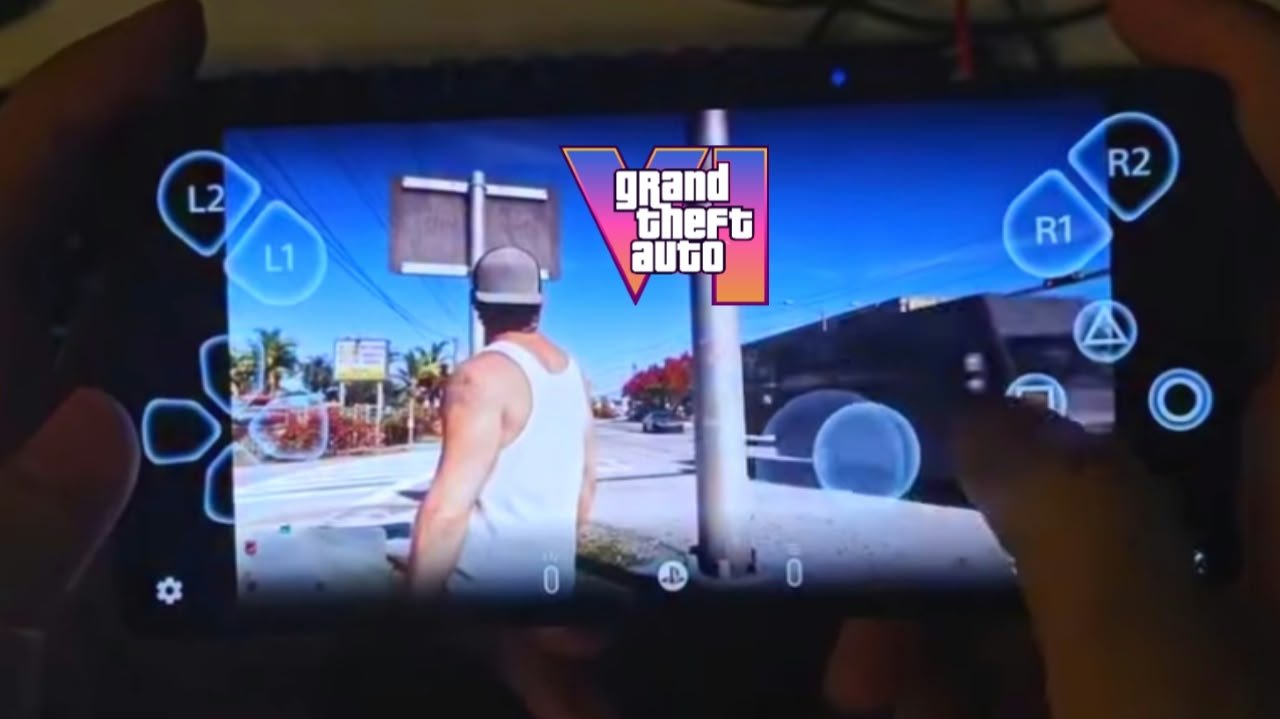
GTA 6 Mobile Guide 2026: Complete Setup Guide for Android & iPhone
GTA 6 launched on November 19, 2026, and one question keeps coming up: can you get GTA 6 on your phone? This GTA 6 mobile guide answers it clearly and walks you through the full setup, from your console to your phone screen.
Everything here uses official, safe methods, and it works on both Android and iPhone.
What’s in This Guide
- Is GTA 6 available on mobile?
- What you need
- Step-by-step setup (PS5 and Xbox)
- Android settings
- iPhone settings
- Controller setup
- Best stream settings
- Common problems and fixes
- Safety: fake APKs and scams
- FAQ
1. Is GTA 6 Available on Mobile?
GTA 6 is not a mobile app. It’s only available on PS5 and Xbox Series X|S, with no Android or iPhone version, and no PC version yet.
You can still get it on your phone through Remote Play. Rockstar has confirmed that GTA 6 fully supports Remote Play on PlayStation and Xbox. Your console runs the game, and your phone shows the picture and sends your controls back.
What doesn’t work: Xbox Cloud Gaming supports GTA 6 only on Xbox consoles. You can’t stream it from the cloud to a phone.
2. What You Need
- A PS5 or Xbox Series X|S with GTA 6 installed
- The free PS Remote Play app (PS5) or Xbox app (Xbox)
- The same account on your console and phone
- 15 Mbps or faster internet, which Sony recommends for the best Remote Play quality
- A controller (strongly recommended)
- An Android phone or iPhone with a recent software version
3. Step-by-Step Setup
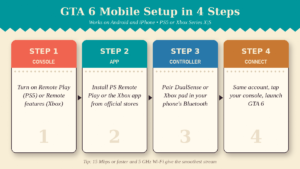
If you have a PS5
Step 1: Turn on Remote Play.
Go to Settings > System > Remote Play and turn on Enable Remote Play.
Step 2: Allow your phone to wake the console.
Go to Settings > System > Power Saving > Features Available in Rest Mode. Turn on Stay Connected to the Internet and Enable Turning On PS5 from Network.
Step 3: Install the app.
Download PS Remote Play from the Google Play Store or App Store. The developer should be Sony Interactive Entertainment.
Step 4: Sign in and connect.
Sign in with the same PlayStation account as your PS5, tap PS5, and wait for your console’s home screen to appear. Then launch GTA 6.
If you have an Xbox Series X|S
Step 1: Turn on remote features.
Go to Settings > Devices & connections > Remote features and turn on Enable remote features.
Step 2: Set the power mode.
Choose Sleep so the console can be woken up from your phone.
Step 3: Install the app.
Download the Xbox app from the Play Store or App Store. The developer should be Microsoft.
Step 4: Sign in and connect.
Sign in with the same Microsoft account, open your library, choose Remote play on this device, and start GTA 6.
4. Android Settings
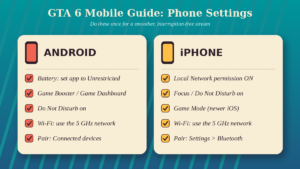
Do these once for a smoother experience:
- Battery: Go to Settings > Apps > [PS Remote Play or Xbox] > Battery and choose Unrestricted. This stops Android from closing the app during play.
- Game mode: If your phone has Game Booster (Samsung) or Game Dashboard (Pixel), add the streaming app to it. This blocks notifications and gives the app priority.
- Do Not Disturb: Turn it on so calls and messages don’t interrupt your mission.
- Wi-Fi: Connect to the 5 GHz network if your router has one.
5. iPhone Settings
- Local Network permission: Go to Settings > Privacy & Security > Local Network and make sure the streaming app is turned on. Without this, the app can’t find your console at home.
- Focus / Do Not Disturb: Turn it on to block notifications while you play.
- Game Mode: On newer iOS versions, Game Mode can reduce background activity and controller delay when you play games.
- Wi-Fi: Use the 5 GHz network.
6. Controller Setup
Touch controls work, but GTA 6 is much easier with a real controller.
Step 1: Put the controller in pairing mode.
- DualSense (PS5): Hold the PS and Create buttons together until the light bar flashes.
- Xbox controller: Hold the small pair button on top until the Xbox button flashes quickly.
Step 2: Pair it with your phone.
- Android: Settings > Connected devices > Pair new device, then tap the controller.
- iPhone: Settings > Bluetooth, then tap the controller under Other Devices.
Step 3: Mount your phone.
Use a phone clip to attach your phone to the controller, or choose a phone grip controller that holds the phone in the middle like a handheld console.
7. Best Stream Settings
| Setting | Recommended | Why |
|---|---|---|
| Resolution | 720p | Sharp on phones, more stable than 1080p |
| Frame rate | Standard | GTA 6 runs at 30 FPS on consoles anyway |
| Phone Wi-Fi | 5 GHz | Faster, less interference |
| Console connection | LAN cable | The biggest boost to stability |
| Phone mode | Do Not Disturb | No interruptions |
Playing away from home? Remote Play works over the internet. Your home connection needs a good upload speed, and your phone needs strong 5G or Wi-Fi. Remote Play uses a lot of mobile data, so watch your plan.
8. Common Problems and Fixes
Problem: The app can’t find my console.
Fix: Make sure Remote Play is on, the console is in Rest Mode or Sleep (not fully off), and you’re using the same account on both devices. On iPhone, check the Local Network permission.
Problem: The picture is blurry or lagging.
Fix: Connect your console with a LAN cable, switch your phone to 5 GHz Wi-Fi, lower the resolution to 720p, and pause downloads on other devices.
Problem: The controller isn’t working.
Fix: Remove the controller from your Bluetooth list and pair it again. On Android, check that the app has permission for nearby devices.
Problem: The stream keeps disconnecting.
Fix: On Android, set the app’s battery usage to Unrestricted. Avoid weak mobile data, and turn off any VPN.
Problem: My phone gets hot and the battery drains fast.
Fix: Remove the phone case, lower the resolution, play while charging, and take short breaks.
Problem: Someone else is using the console.
Fix: Only one person can use the console at a time. Remote Play can’t run while someone else is playing on the TV.
9. Safety: Fake APKs and Scams
Since launch, the internet has been full of fake “GTA 6 mobile” offers. Remember:
- There’s no GTA 6 APK. Any download claiming to be one is fake and may contain malware.
- There’s no “GTA 6 Lite” for low-end phones.
- There’s no free GTA 6 cloud streaming for phones.
- Never enter your PlayStation, Xbox or Google password on unofficial websites.
- Don’t install configuration profiles on iPhone or unknown APKs on Android to “unlock” GTA 6.
Only use PS Remote Play or the Xbox app from the official app stores.
10. FAQ
Can I download GTA 6 on Android or iPhone?
No. GTA 6 isn’t a mobile game. You stream it from a PS5 or Xbox Series X|S with Remote Play.
Is the Remote Play app free?
Yes. PS Remote Play and the Xbox app are free.
Do I need a gaming phone?
No. The console does the heavy work. A recent phone with good Wi-Fi is enough.
Can I play GTA 6 on mobile without a console?
No. You need GTA 6 on a PS5 or Xbox Series X|S.
What internet speed do I need?
Sony recommends at least 15 Mbps for the best quality, and 5 Mbps as a minimum.
Does it work on tablets?
Yes. Android tablets and iPads work, and the bigger screen makes GTA 6 easier to play.
Conclusion
This GTA 6 mobile guide comes down to one simple idea: your console runs the game, and your phone becomes the screen. Turn on Remote Play, install the official app, pair a controller, adjust a few phone settings, and you can explore Vice City and Leonida from your phone. Skip every fake APK, and stick to the official apps.
